A split screen browser for Mac.
Read a source and work beside it. Thravik Split View keeps up to four live pages in one window, with resizable horizontal or vertical panes.
Download Thravik for MacmacOS 26 or later · A guide from the Thravik team
Keep a source and your work visible together.
Reading documentation while using a web app should not require switching tabs after every sentence. Thravik’s Split View shows two, three or four live pages in one browser window. Resize the panes to give more room to the page you are working on.
Use two panes for an article and notes, a dashboard and documentation, or two pages you want to compare. Add another pane only when you need another live source: every pane is a real web page, not a screenshot.
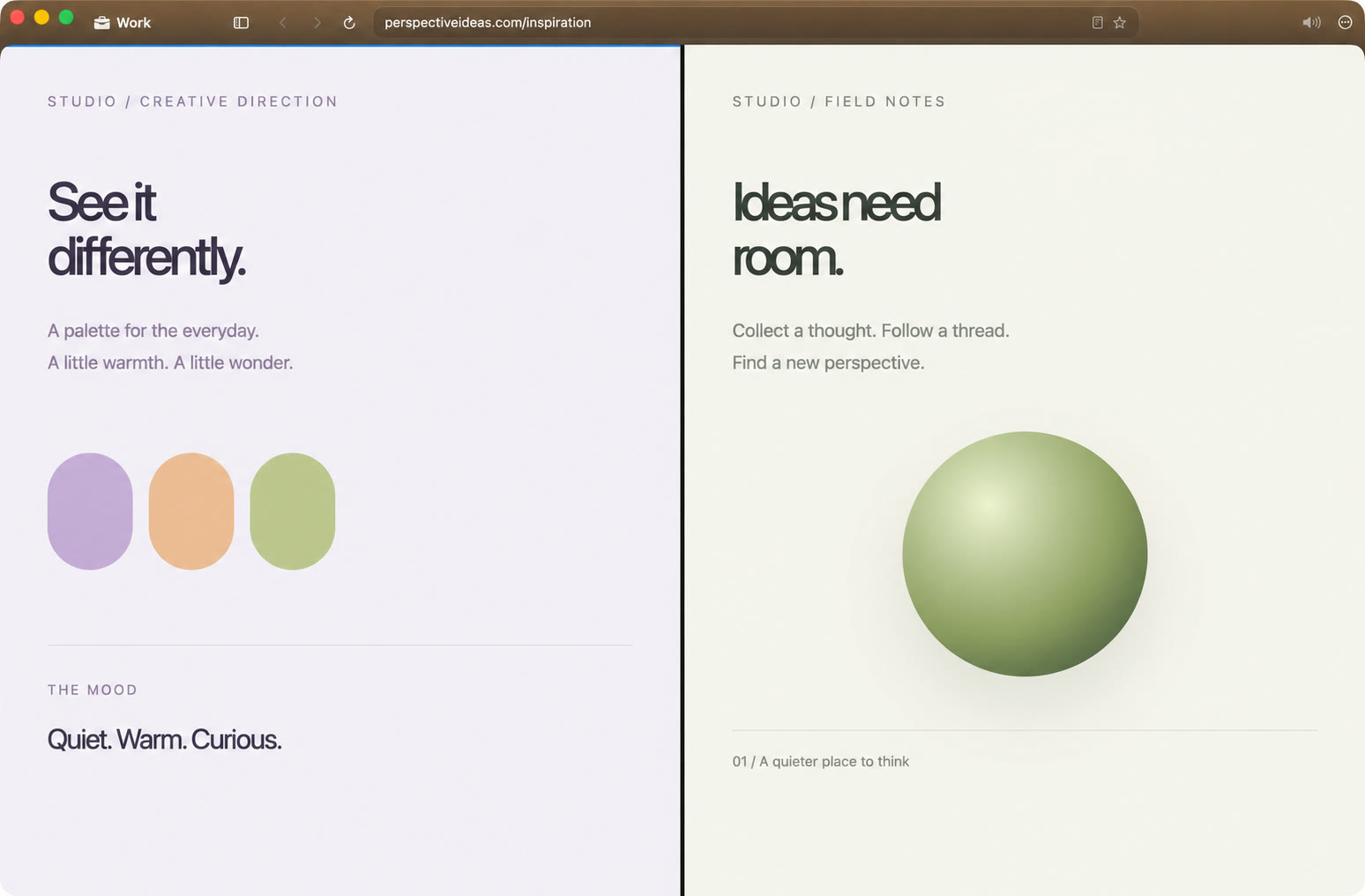
How to open Split View in Thravik.
- Open the pages you want to use as tabs. Select the first page you want in the split.
- Press ⌘⇧D or choose View → Split View. Thravik puts another tab beside the selected page.
- Drag the divider to resize the panes. Give the reading source less room and the working page more, or balance them for comparison.
- Use View → Add Pane for another page. A split supports up to four panes. View → Flip Split changes its orientation.
- Choose View → Close Split when finished. Ending the split keeps its tabs open.
These are the default shortcuts. If you have customised bindings, use the menu command or your chosen shortcut.
Browser Split View or macOS window tiling?
Use the browser’s split when both pieces of work are websites and you want them together inside one window. Use macOS window arrangement when one side is another app, such as a native editor, a spreadsheet or a video call.
The names are similar, but these controls act at different levels. Apple’s Mac Split View guide describes arranging two app windows. Thravik’s Split View arranges browser tabs.
Can I keep a split while using other tabs?
Yes. Selecting another tab sets the split aside. Selecting a tab that belongs to the split shows it again. You can return to a single page without closing the pages you were comparing.
Does Split View reduce memory usage?
Each visible pane needs a live renderer. More active pages can use more resources. Choose the number of panes that helps your task; Thravik does not claim a measured memory or battery advantage over other browsers.
For a cleaner tab list, explore vertical tabs. For separate projects and logins, use Spaces. To retrieve a source after you have closed it, see Private Memory.
Explore the details.

Your Mac deserves
a little breathing room.
Download Thravik for MacmacOS 26 or later · Release details and installation on GitHub